
Agent instruction settings
Write and edit the instructions that tell your AI phone agent what to say, use prompt variables, and restore earlier versions from change history.
Agent instructions are the text your agent follows on every call: who it represents, what it can answer, and what to do when it cannot help. Clear instructions are the biggest factor in how well your agent handles callers.
How do I open the agent instructions?
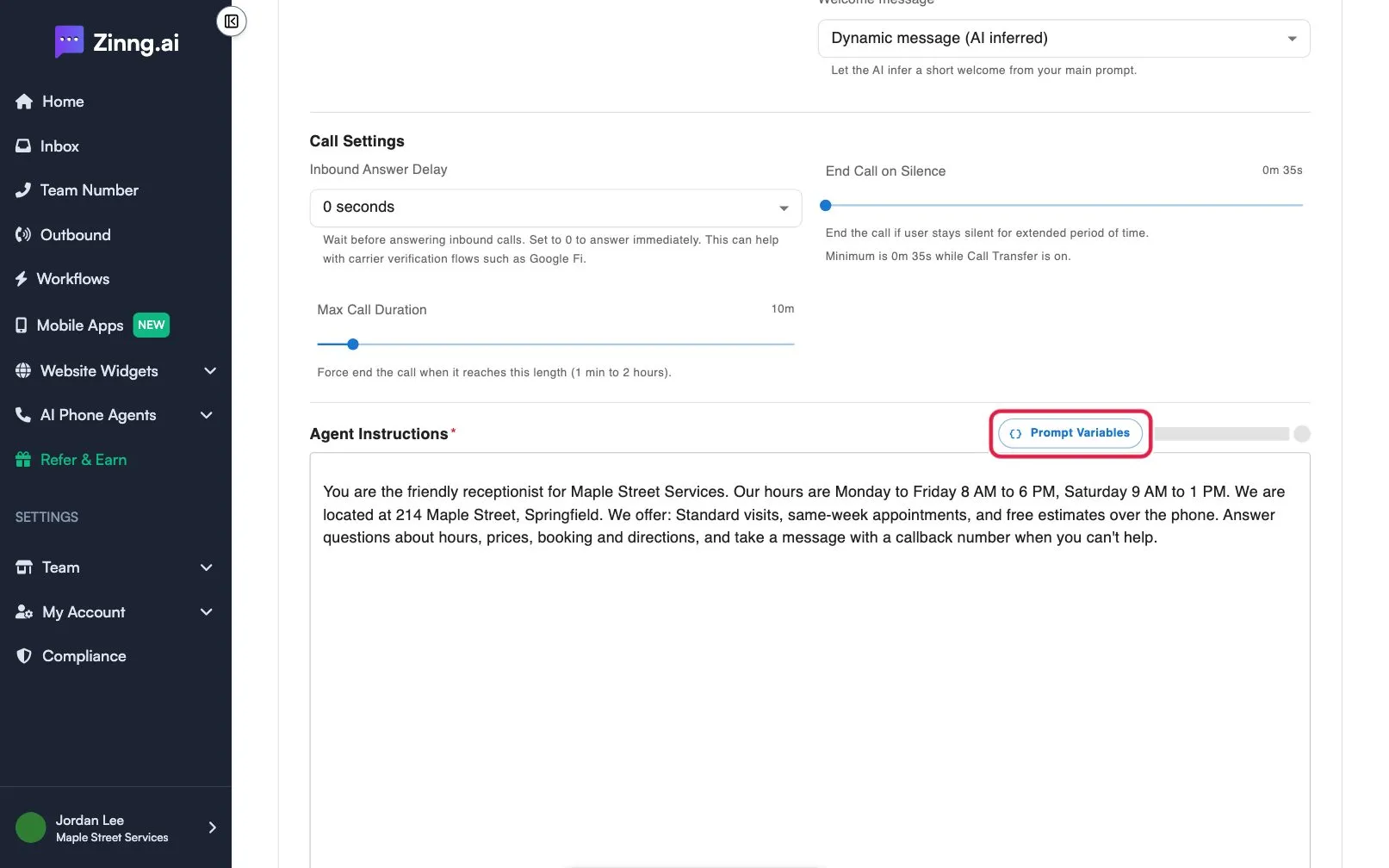
Section titled “How do I open the agent instructions?”Open the Agents page and select your agent. On your agent’s page, open the Agent Settings card and stay on the Instructions tab. Agent Instructions is the large text box below Call Settings.
What can I change?
Section titled “What can I change?”| Setting | What it does | Plan if limited |
|---|---|---|
| Agent Instructions | The text your agent follows. It is required. Placeholder text asks you to enter your custom prompt. Under the box, a hint says to be specific about how it should behave, what to collect and how to respond. | |
| Prompt Variables | A button above the box. It lists values that fill in automatically on every call. Select one to copy it, then paste it into your instructions. | |
| View change history | A history icon next to Prompt Variables. It opens Change History with every saved version and who changed it. | |
| Save Changes | Saves your edits. It appears in the Unsaved changes bar when you change anything. |
Which prompt variables can I use?
Section titled “Which prompt variables can I use?”Type these exactly as shown. They fill in on every call.
| Variable | What it fills in |
|---|---|
{{user_number}} |
The caller’s phone number. |
{{caller_number_spoken}} |
The caller’s number, formatted so the agent can read it back. |
{{current_time}} |
The current date and time in your agent’s time zone. Useful for holiday or vacation hours. |
{{full_name}} |
The caller’s name, if one is on file. Blank for new callers. |
Common tasks
Section titled “Common tasks”Edit the instructions
Section titled “Edit the instructions”Follow edit your agent’s instructions.
Add your hours
Section titled “Add your hours”Hours live in your instructions text. See set business hours and after-hours behavior.
Restore an earlier version
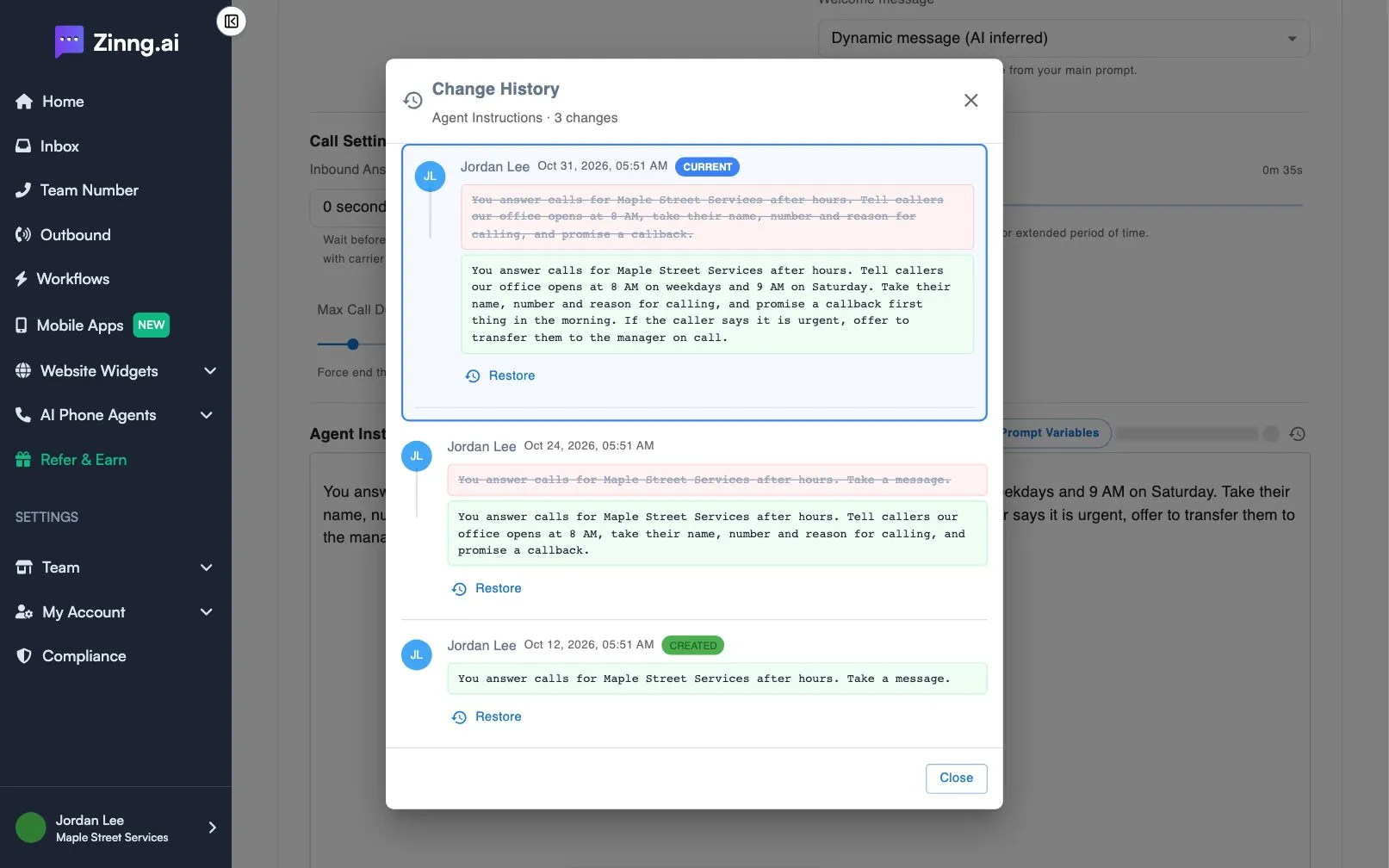
Section titled “Restore an earlier version”- Select the history icon (View change history).
- In Change History, find the version you want. The newest is tagged CURRENT and the first is tagged CREATED. Removed text is crossed out and new text is highlighted.
- Select Restore under that version. You see Value restored. Click Save to apply changes.
- Select Close, then Save Changes.
Let AI rewrite them
Section titled “Let AI rewrite them”Ask AI Copilot in plain English. See make changes to your agent with Chat with AI.