
The Invitations page
See the invitations other teams sent you and accept or reject each one from the Invitations page in your Zinng account now.
The Invitations page lists every invitation you received to join a team. Each one shows the team name and who invited you, and you can accept or reject it.
Open the Invitations page
Section titled “Open the Invitations page”In the left menu, open My Account and select Invitations (open your Invitations page). The page is titled Invitations for followed by your email address.
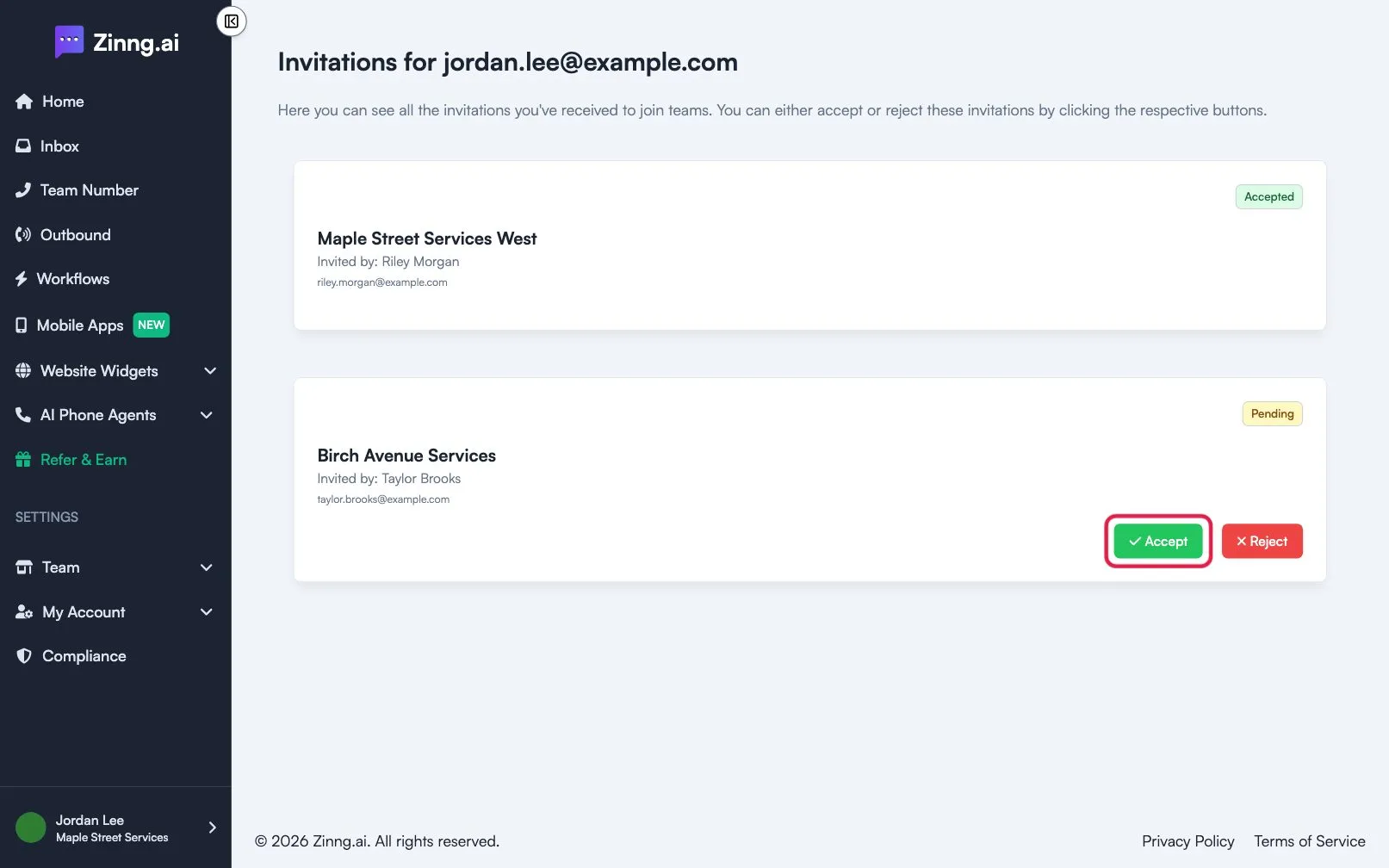
What each invitation shows
Section titled “What each invitation shows”| Item | What it shows |
|---|---|
| Team name | The team that invited you. |
| Invited by | The name and email of the person who sent it. |
| Status badge | Pending, Accepted or Rejected. |
| Accept and Reject | Buttons that appear only while the invitation is pending. |
If you have none, the page says No invitations found.
Common tasks
Section titled “Common tasks”Accept an invitation
Section titled “Accept an invitation”Select Accept on the card, then Accept Invite to confirm. The team becomes your active team. Full steps are in accept an invite.
Reject an invitation
Section titled “Reject an invitation”Select Reject, then Reject Invite to confirm.
I accepted but nothing happened
Section titled “I accepted but nothing happened”Accepting can fail if the team has reached the number of users its plan allows. Ask the team’s owner to upgrade the plan or free up a seat.