
Turn on two-factor authentication
Protect your login with an authenticator app or text-message codes. Turn on two-factor authentication, save recovery codes and sign in with a code.
Two-factor authentication (2FA) asks for a code each time you log in, so a stolen password alone is not enough. Open Profile Settings and select Manage 2FA to turn it on.
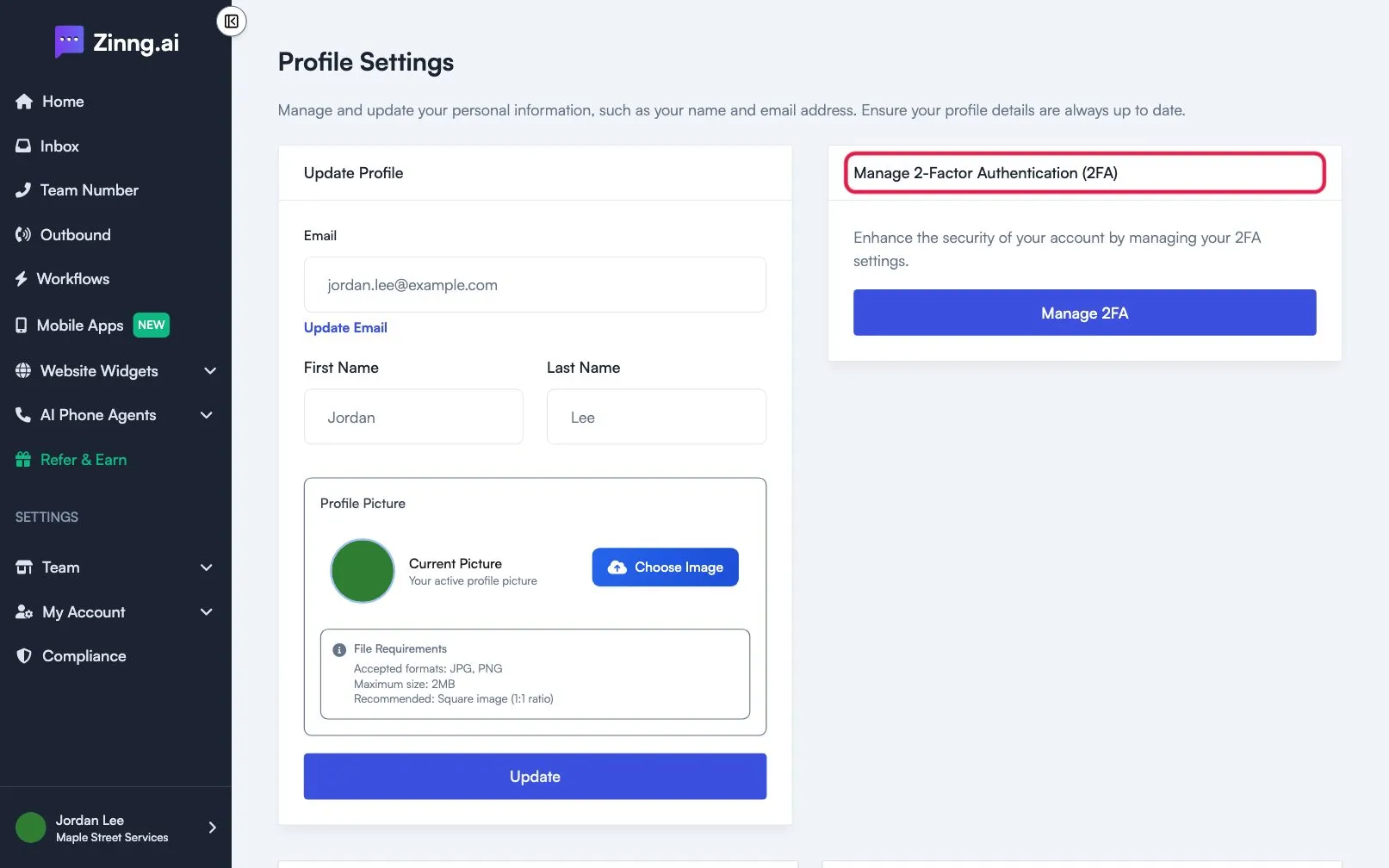
Choose a method
Section titled “Choose a method”The Two-Factor Authentication page offers two methods. Use one at a time: while one is on, the other is turned off.
| Method | What you need |
|---|---|
| Authenticator App | An authenticator app on your phone. |
| Receive OTP via SMS | A verified phone number on your account. |
Turn on an authenticator app
Section titled “Turn on an authenticator app”- On Profile settings, select Manage 2FA.
- Under Authenticator App, select Activate.
- Scan the QR code with your authenticator app. You can also keep the Authenticator secret shown on the page to reinstall the app later.
- Enter the 6-digit code from the app and select Activate.
Turn on text-message codes
Section titled “Turn on text-message codes”- On Two-Factor Authentication, find Receive OTP via SMS.
- If you have no verified number, select Add and verify your phone number and follow Update your profile, photo and phone number.
- Select Activate SMS 2FA.
A one-time code is then texted to your number at each login. Message and data rates may apply.
Save your recovery codes
Section titled “Save your recovery codes”Under Recovery Codes you can select View, Download or Generate. Generating a new set makes your existing codes stop working, so download the new ones.
Log in with 2FA on
Section titled “Log in with 2FA on”After your password, a Two-Factor Authentication page asks for your code. Enter it and select Sign In.
Turn 2FA off
Section titled “Turn 2FA off”On Two-Factor Authentication, select Deactivate under Authenticator App or Deactivate SMS 2FA.