
Test your AI phone agent with a web call
Talk to your new AI phone agent from your browser before it takes real calls, try other voices, and know what to check and fix.
Hear your agent before a real caller does. The setup wizard lets you start a preview call from your browser, so you can check that the agent knows your hours and services and sounds right. You do not need a plan or a phone number for this.
Before you start
Section titled “Before you start”- An agent. Build one in set up your first AI phone agent.
- A microphone, speakers or headphones, and a browser that can use them.
- A quiet room, so the agent hears you clearly.
Make the test call
Section titled “Make the test call”-
Open the test screen.
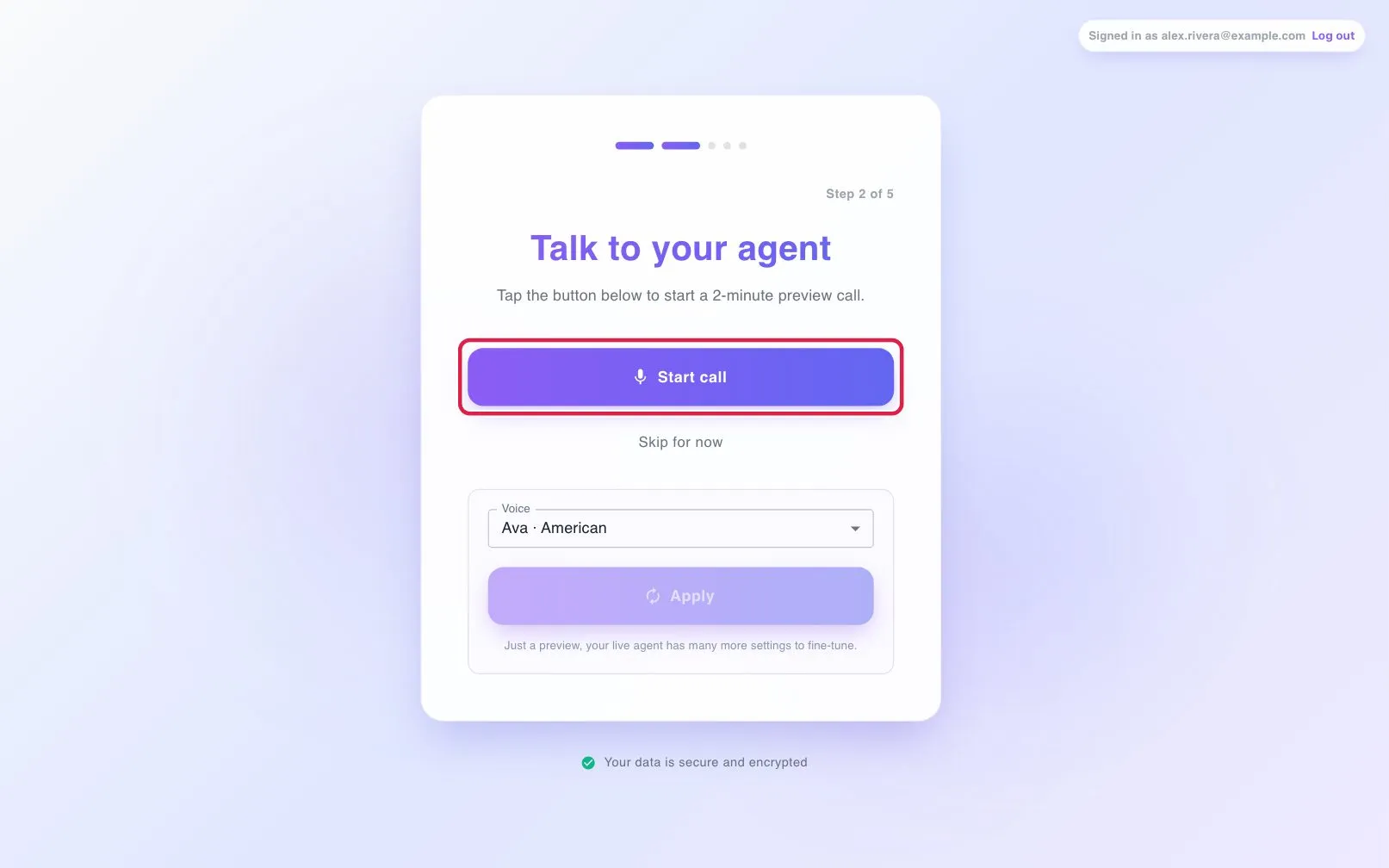
Finish Generate my agent in the setup wizard. When the agent is ready, the page shows Talk to your agent. The wizard describes this as a 2-minute preview call.
-
Start the call.
Select Start call and allow microphone access if your browser asks. The page shows Connecting…, then a running timer and Your agent is live. Ask it anything about your business.
-
Talk like a caller.
Ask what a customer would ask:
- What services do you offer?
- When are you open?
- Where are you located?
- Can I book an appointment?
- Can I speak to a person?
Also ask something you did not give it. A good agent says it does not know instead of inventing details.
-
End the call.
Select the hang-up button, or let the call finish. The page asks How did that sound?
-
Try a different voice, if you like.
Under the call, open Voice, pick a voice (select the play icon to hear a sample), then select Apply. Select Re-test to call again with the new voice.
-
Continue or fix.
Happy with it? Select Continue setup. If an answer was wrong, finish setup, then correct the details in your agent’s instructions.
What to check
Section titled “What to check”- Accuracy: hours, services and location are correct.
- Clarity: the voice is easy to understand and the answers are short.
- Next step: the agent leads the caller toward the right action.
Troubleshooting
Section titled “Troubleshooting”Start call does not work, or I see a microphone error
Section titled “Start call does not work, or I see a microphone error”Allow microphone access for the site in your browser or system settings, check your network, then select Start call or Re-test again.
I see “We couldn’t start the preview call”
Section titled “I see “We couldn’t start the preview call””Select Try again. If it keeps failing, select Skip for now to finish the wizard and test later from your agent.
The agent does not respond when I speak
Section titled “The agent does not respond when I speak”Your browser is probably sending the wrong microphone. This happens when you connected headphones or a USB microphone earlier and then removed them.
- In Chrome or Edge, select the icon left of the address bar, open Microphone, and pick the microphone you are speaking into.
- In Safari or Firefox, set the right input device in your computer’s sound settings, and check that the browser is allowed to use the microphone for this site.
- Reload the page, then select Start call or Re-test again.
The agent gives wrong information
Section titled “The agent gives wrong information”The agent only knows what you gave it. Finish setup, then correct your agent’s instructions.
Something sounded wrong
Section titled “Something sounded wrong”Select Report a problem below the call, describe it under What went wrong? and select Submit.
Next steps
Section titled “Next steps”- Finish the remaining wizard steps in set up your first AI phone agent.
- Go live: start your plan and get a phone number